Tracelink University
## Breadcrumb
1. [Home](/)
2. [Resources](/resources/resource-center)
3. [TraceLink University](/resources/tracelink-university)
# Workflow Customization Guide
- [Download PDF](/node/33646/pdf)
- [Share](#)
- [ LinkedIn ](https://www.linkedin.com/shareArticle?mini=true&url=https://www.tracelink.com/resources/tracelink-university/workflow-customization-guide&title=Workflow Customization Guide&summary=This guide explains how to customize workflows and subworkflows in the TraceLink platform. It is designed for customers who want to implement specific business logic using transition conditions and actions.&source=TraceLink "LinkedIn")
- [ Facebook ](https://www.facebook.com/share.php?u=https://www.tracelink.com/resources/tracelink-university/workflow-customization-guide&t=Workflow Customization Guide "Facebook")
- [ Mail ](mailto:?subject=Workflow Customization Guide+|+TraceLink&body=https://www.tracelink.com/resources/tracelink-university/workflow-customization-guide "Mail")
- [ Twitter ](https://twitter.com/intent/tweet?text=Workflow Customization Guide https://www.tracelink.com/resources/tracelink-university/workflow-customization-guide&via=TraceLink "Twitter")
#### Table of contents
## Overview
This guide explains how to customize workflows and subworkflows in the TraceLink platform. It is designed for customers who want to implement specific business logic using transition conditions and actions. This guide covers:
- Understanding workflows and subworkflows
- Adding subworkflows
- Defining transition conditions
- Executing transition actions
- Real-world examples for both conditions and actions
### Workflows and Subworkflows
**Workflows** define the lifecycle of an object (e.g., a request, task, or document) in the TraceLink platform, outlining the states an object can move through and the transitions that govern those changes.
They consist of:
- **Base States** - An object can be in one of several predefined base states, such as **Draft**, **In Review**, or **Approved**. Base states are set by the application developer and cannot be customized by customers.
- **Transitions** - **Transitions** define how an object moves from one state to another. Each transition can include logic, such as event handlers that run when the transition occurs.
**Subworkflows** are specialized workflows that exist within the context of a parent workflow. They allow for additional customization and can include their states and transitions. Subworkflows enable customers to tailor workflows to their specific business processes without altering the base workflow defined by the application developer.
For example, a base workflow might include a state called "Pending Approval," while a subworkflow could define specific approval steps, such as "Pending Approval by Product Architect" or "Pending Approval by CTO." This modular approach allows for flexibility and reusability of workflow logic.
### Adding a Subworkflow to a Parent Workflow
To embed a subworkflow within a parent workflow in the TraceLink platform, follow the steps below using the OSE (Object Solution Editor) interface. This allows you to modularize your workflow logic and tailor it to your business needs.
1. **Navigate to the Workflow** section - Go to the **OSE Solutions** tab in the TraceLink platform and select **Workflow** from the left-hand navigation panel.
2. **Select the Target Solution** - Choose the solution in which you want to add the subworkflow. This will open the details related to that solution’s workflow.
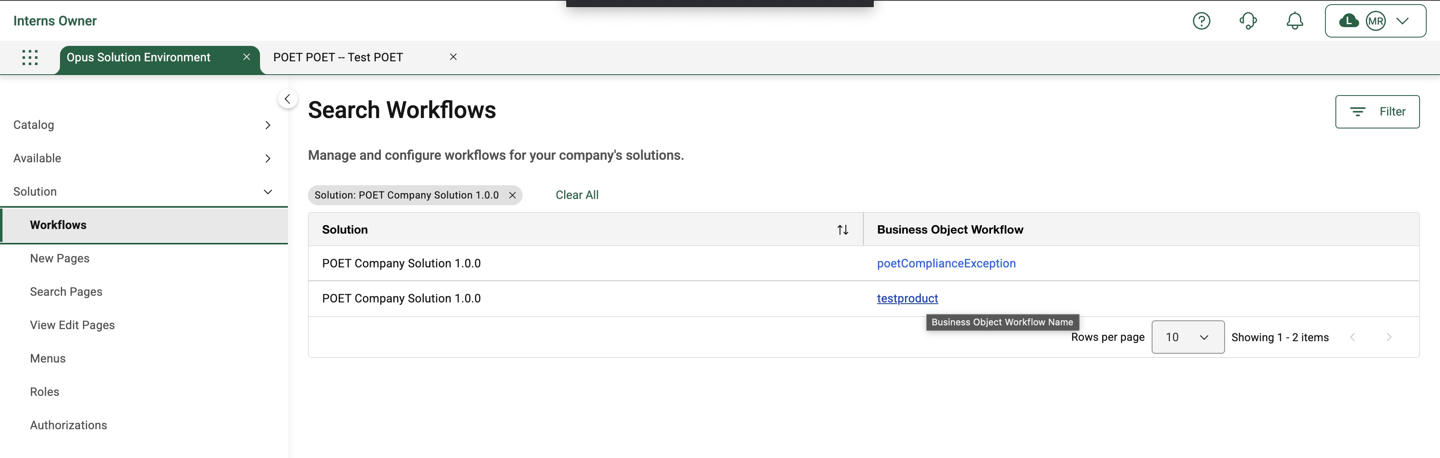
3. **Access the Workflow Details** page - Once the solution is selected, you will be directed to the Workflow Details page.
4. **Enter Edit Mode** - Select **Edit** button to enable workflow customization options.
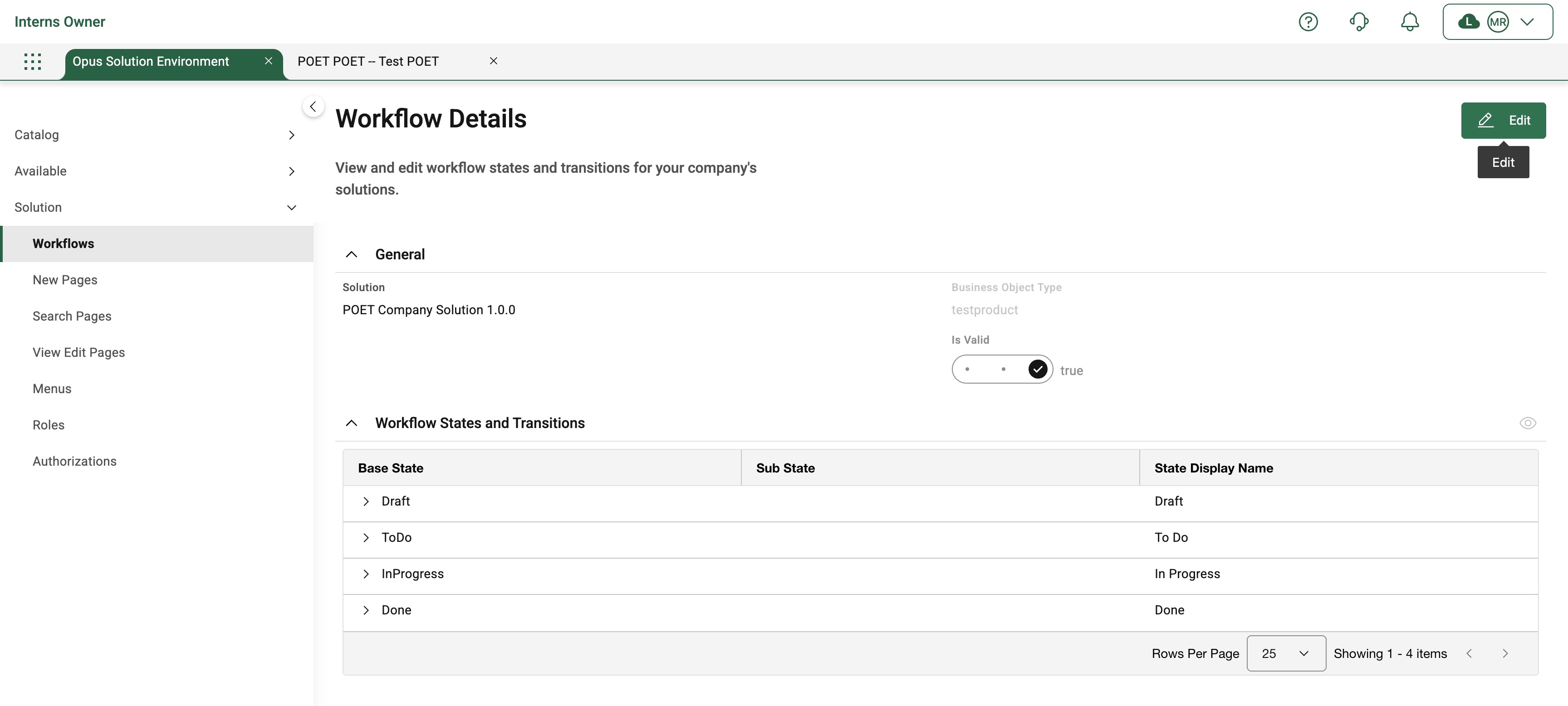
5. **Choose the Parent Workflow** - From the list of available workflows, select the parent workflow where you want to embed the subworkflow.
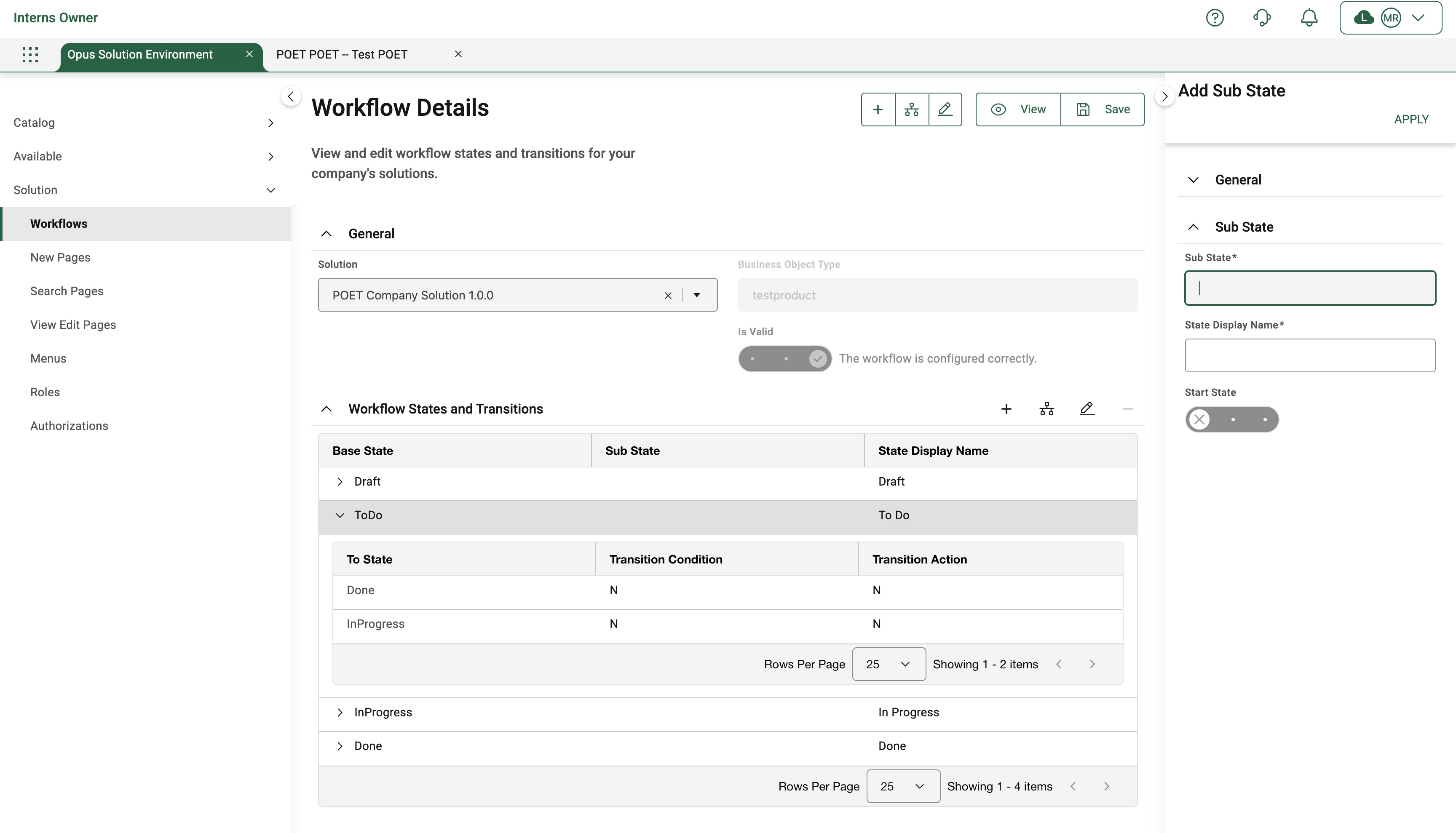
6. **Add a Subworkflow** - Click the “+” (plus) icon next to the workflow state where the subworkflow should be inserted. This opens the subworkflow configuration panel.
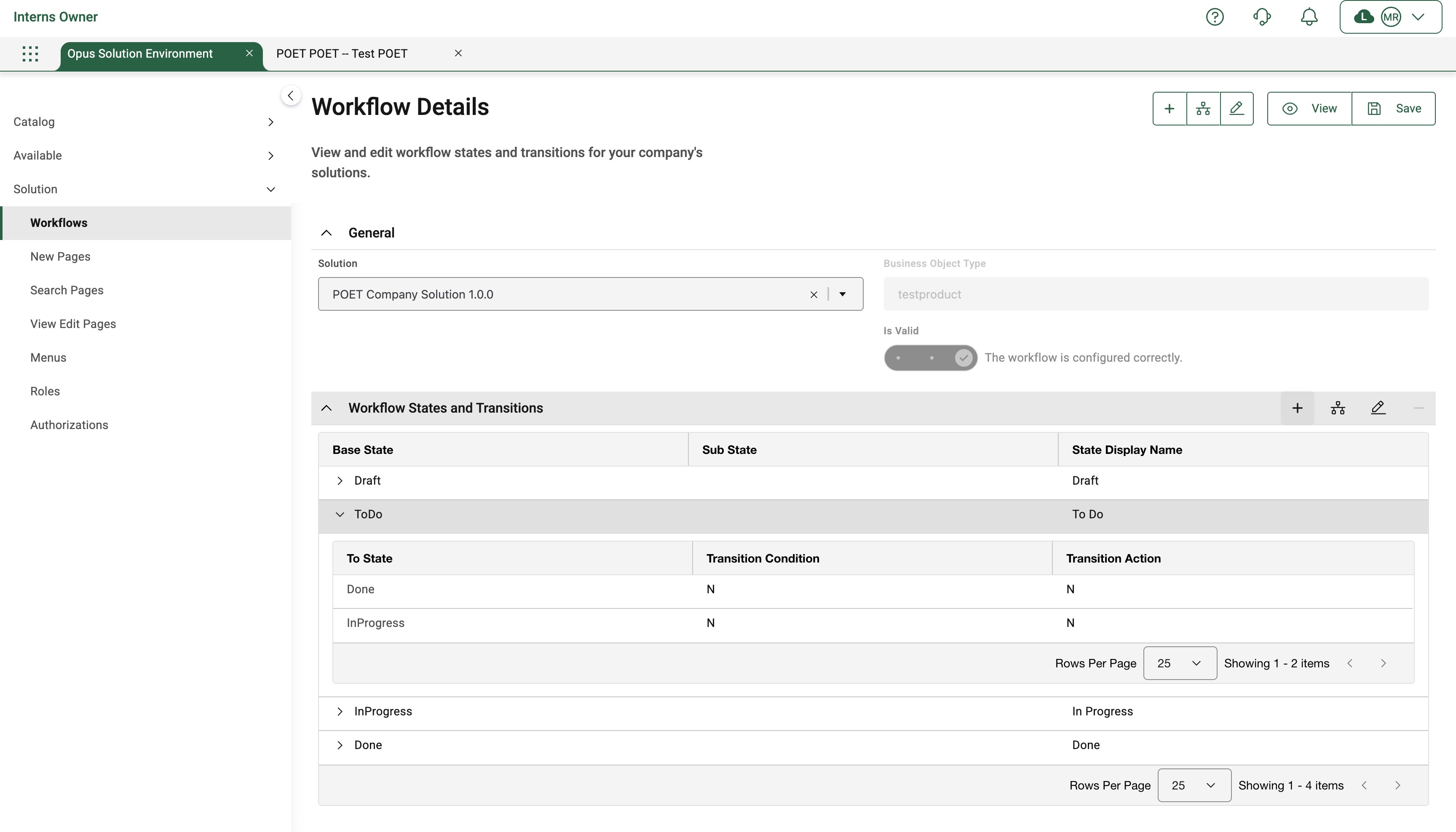
7. **Configure and Apply** - Enter the required fields (e.g., subworkflow name, associated base state, etc.), then select **Apply** to embed the subworkflow into the parent workflow.
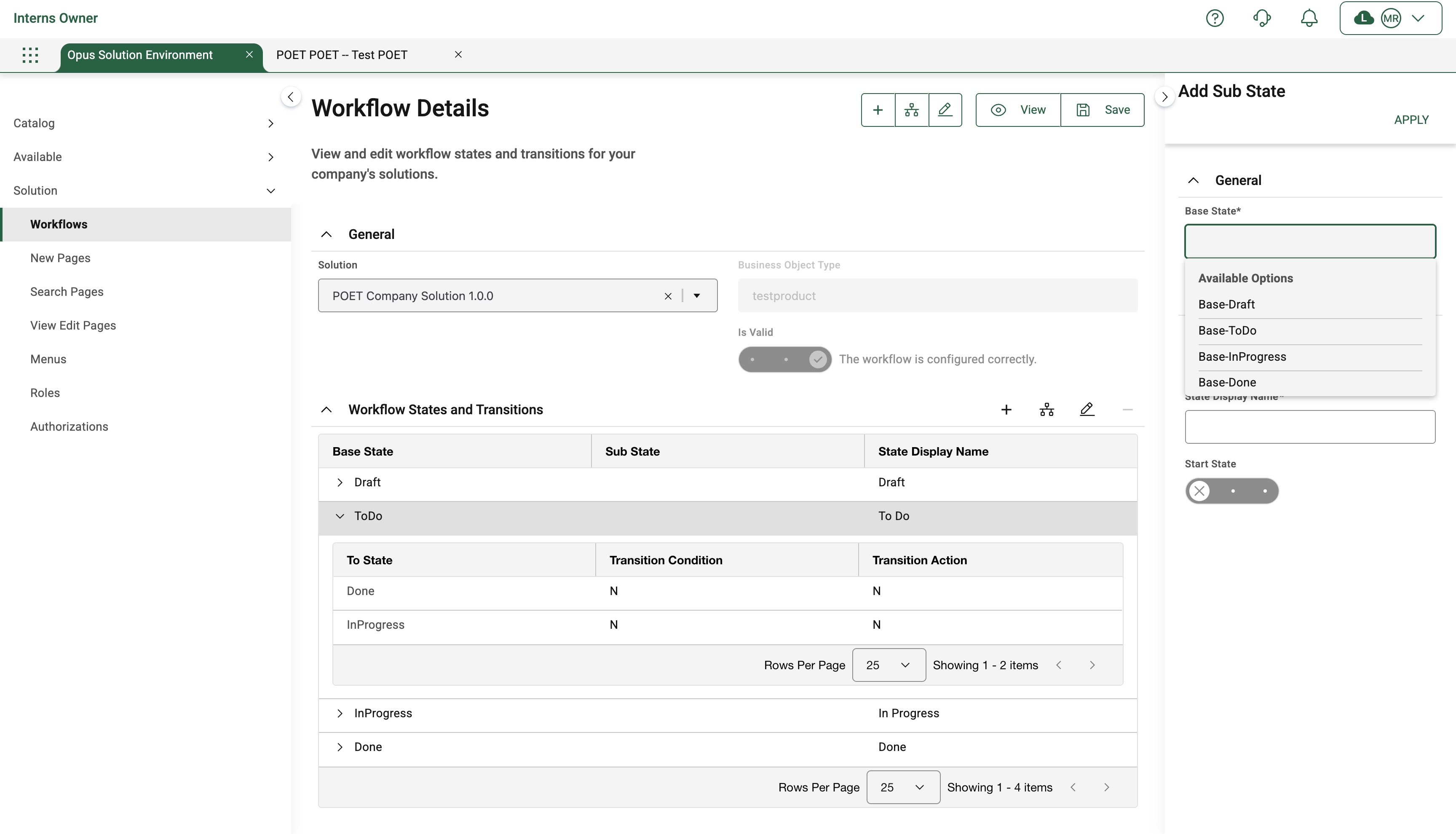
Enter the fields to create a Subworkflow.
### Transition Conditions
Transition conditions are logical rules that determine whether a transition between two states in a workflow is allowed to occur. These conditions are evaluated at runtime, and the transition only proceeds if the condition evaluates to true.
They allow you to enforce business logic dynamically based on:
- Field values in the object
- User roles or permissions
- Related object data
- External system responses
Transition conditions help ensure that:
- Only the right users can trigger certain transitions
- Transitions happen only when the data is complete or valid
- Workflow logic adapts to the current state of the object or system
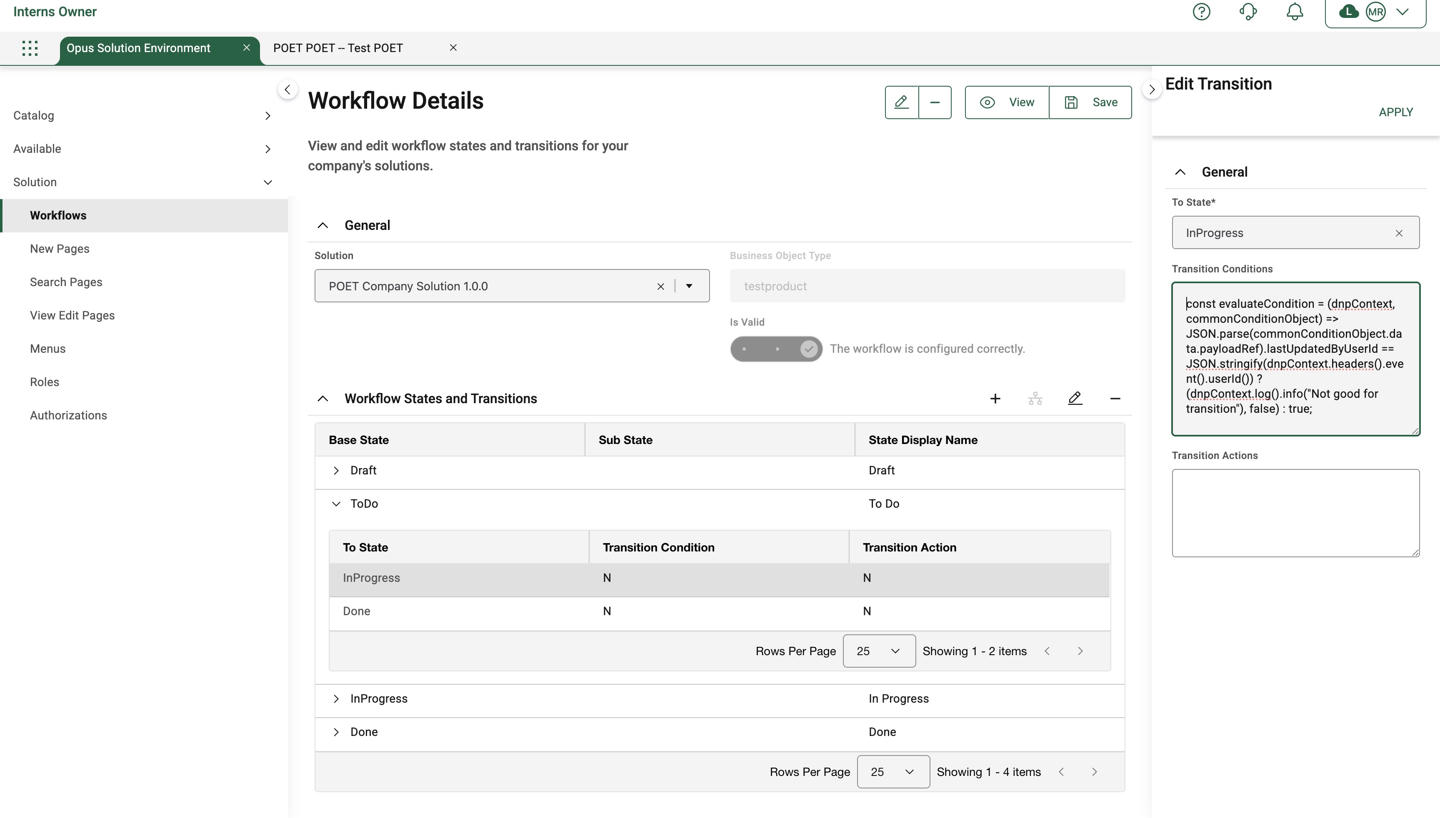
> Pre-transition conditions must be written as a single line of code. Multi-line conditions are not supported and will result in execution failure.
### Transition Actions
Transition actions are tasks or operations that are automatically executed when a transition between workflow states occurs. These actions are triggered after the transition condition (if any) evaluates to true and the transition is allowed to proceed.
They are used to automate business logic, trigger side effects, or update the system when an object changes state.
Transition actions help you:
- Enforce business processes automatically
- Keep related systems or objects in sync
- Send notifications or alerts
- Create or update related data
- Integrate with external APIs
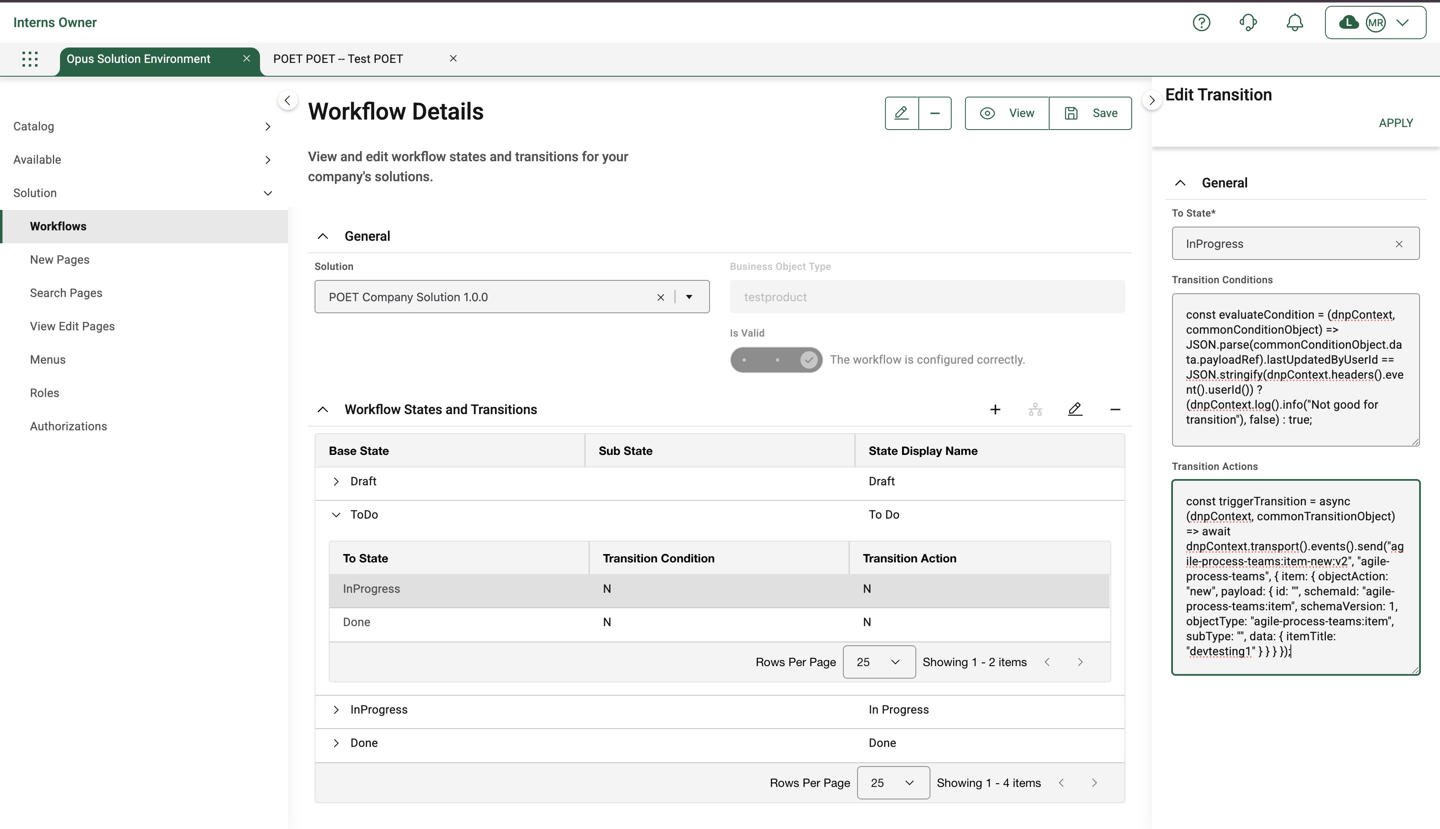
> Post-transition Actions must be written as a single line of code. Multi-line conditions are not supported and will result in execution failure.
### Transition Condition Use Cases and Scripts (examples)
#### Restrict Transition Based on Last Updated User
The Pre-Transition condition prevents a transition if the user attempting the transition is the same user who last updated the object.
```plaintext
function evaluateCondition(dnpContext, commonConditionObject) {
let isConditionSuccessful = true;
if (
JSON.parse(commonConditionObject.data.payloadRef).lastUpdatedByUserId ==
JSON.stringify(dnpContext.headers().event().userId())
) {
dnpContext.log().info("Not good for transition");
isConditionSuccessful = false;
}
return isConditionSuccessful;
}
```
#### Enforce Transitions Based on User Permissions
The Pre-Transition condition ensures that only users with a specific permission are allowed to perform the transition.
```plaintext
function evaluateCondition(dnpContext, commonConditionObject) {
let isTransitionSuccessful = 'true';
const payload = JSON.parse(commonConditionObject.data.payloadRef);
if (!role.permissions().includes("PERMISSION_NAME")) {
isTransitionSuccessful = 'false';
}
return isTransitionSuccessful;
}
```
### Transaction Action Use Cases and Scripts (examples)
#### Querying a Related Object During Transition
This action retrieves data from another object using GraphQL (GQL), enabling dynamic decision-making during the transition.
```plaintext
const related = gql.queryObject("PurchaseOrder", { id: object.poId });
```
#### Creating a New Object Automatically
The Post-Transition action initiates the creation of a new object, such as a child item or task, when a workflow transition is executed.
```plaintext
async function triggerTransition(dnpContext, commonTransitionObject) {
return await dnpContext.transport().events().send(
"agile-process-teams:item-new:v2",
"agile-process-teams",
{
item: {
objectAction: "new",
payload: {
id: "",
schemaId: "agile-process-teams:item",
schemaVersion: 1,
objectType: "agile-process-teams:item",
subType: "",
data: {
itemTitle: "devtesting1"
}
}
}
}
);
```
#### Integrating with External Systems via API Call
The Post-Transition action sends a POST request to an external system (e.g., a Slack webhook or third-party API) as part of the transition logic.
```plaintext
function triggerTransition(dnpContext, commonTransitionObject) {
const host = "hooks.slack.com";
const path = "PATH";
const datatosend = { text: "TEXT" };
dnpContext
.transport()
.https()
.post(host, path, datatosend)
.then(function (resp) {
console.log("Received response: " + resp.statusCode);
return {
statusCode: resp.statusCode,
reasonPhrase: resp.reasonPhrase,
headers: JSON.stringify(resp.headers),
contentLength: resp.entity.contentLength,
contentType: resp.entity.contentType,
rawContent: resp.entity.rawContent
};
})
.catch(function (err) {
console.log("Got error: " + err.name + " : " + err.message);
throw err;
});
return payload;
}
```
#### Update Fields in the Current Object
You can update fields only in the object undergoing the state transition. Updating a different object is not supported, as its ID is not accessible within the transition context.
#### Sample Workflow Transition Payload Structure
The following is a sample object structure passed as a parameter to pre-transition conditions and post-transition actions within a TraceLink workflow. This payload provides contextual information about the object undergoing the state transition, including metadata, workflow states, user information, and business data.
This structure is typically accessed in the workflow customization scripts via commonConditionObject or commonTransitionObject, and is essential for writing dynamic logic in custom conditions and actions.
```plaintext
{
"id": "a798b28a-7df9-4965-bec9-7cf713fb7001",
"data": {
"fromState": {
"baseState": "ToDo"
},
"toState": {
"baseState": "InProgress",
"subState": "Approved"
},
"objectType": "agile-process-teams:ext_TRACELINK_triageWorkItem",
"payloadRef": {
"schemaVersion": 3,
"currentBaseState": "InProgress",
"data": {
"workItemTitle": "t",
"dueDate": 1751155200000,
"followers": [
{
"followerId": "e89f5ba0-f4f6-4932-9640-dd9dc9b40d84"
},
{
"followerId": "c02dfe02-b872-40a2-ac50-75b5ffe3bc93"
}
],
"fkProcessNetworkId": "31859341-3038-45c2-95aa-0f68d752ea65",
"initiatingCompany": {
"address1": "74 Main St",
"address2": "Street GALESBURG",
"postalCode": "49053",
"city": "Washington",
"state": "MI",
"country": "US",
"businessPhone": "978-222-1112",
"fax": "9062479",
"identifiersTypeValue": "DUNS 123456789,GCP 979367924,GLN 9793679248323,SGLN 979367924.832.0",
"identifiersTypeValueWithBusinessName": "QAOwnerCorp202411201416407991 DUNS 123456789,QAOwnerCorp202411201416407991 GCP 979367924,QAOwnerCorp202411201416407991 GLN 9793679248323,QAOwnerCorp202411201416407991 SGLN 979367924.832.0",
"primaryIdentifierType": "GLN",
"primaryIdentifierValue": "9793679248323",
"businessName": "QAOwnerCorp202411201416407991"
},
"createdByUser": {
"userEmail": "qeauto+qaownercorp202411201416407991-coa [at] tracelink.com",
"userName": "Megan Griffin"
},
"creationTimestamp": 1750758849118,
"lastModifiedByUser": {
"userEmail": "qeauto+qaownercorp202411201416407991-int [at] tracelink.com",
"userName": "Janet Miller"
},
"lastModifiedTimestamp": 1750842896108,
"displayIdentifier": "WI-12",
"currentState": "ToDo"
},
"schemaId": "agile-process-teams:workItem",
"subType": "ext_TRACELINK_triageWorkItem",
"id": "a798b28a-7df9-4965-bec9-7cf713fb7001",
"objectType": "agile-process-teams:workItem",
"ownerId": "bd4d1af0-b2f1-41ec-8807-ef5d364feecc",
"dataVersion": 3,
"lastUpdatedDateTime": 1750842896309,
"lastUpdatedByUserId": "c02dfe02-b872-40a2-ac50-75b5ffe3bc93",
"contextualOwnerId": "bd4d1af0-b2f1-41ec-8807-ef5d364feecc",
"createdByUserId": "e89f5ba0-f4f6-4932-9640-dd9dc9b40d84",
"creationDateTime": 1750758849471,
"dataSource": "dataCache",
"isFresh": true,
"currentSubState": "Approved"
}
}
}
```
[TraceLink University](/tags/tracelink-university)
#### Table of contents
##### Related Content
[  ](/resources/tracelink-university/understanding-page-types-within-opus-solution-environment-ose)
##### Understanding Page Types within the OPUS Solution Environment (OSE)
Page types enable Solution Designers to efficiently create user-friendly pages using a drag-and-drop interface, allowing them to organize information for optimal usability.
[View More](/resources/tracelink-university/understanding-page-types-within-opus-solution-environment-ose)
[  ](/resources/tracelink-university/ux-writing-and-terminology)
##### UX Writing and Terminology
The goal is to create UI text that is clear and concise, offering users the essential information they need to effectively complete their tasks.
[View More](/resources/tracelink-university/ux-writing-and-terminology)
[  ](/resources/tracelink-university/introducing-opus-ensemble)
##### Introducing OPUS Ensemble
TraceLink's OPUS Ensemble, the first next-generation solution on the OPUS Platform, revolutionizes user interaction by seamlessly integrating personalized settings, powerful navigation, and company-specific context for efficient access to notifications, support, and essential tools.
[View More](/resources/tracelink-university/introducing-opus-ensemble)
[  ](/resources/tracelink-university/opus-ensemble-patterns)
##### OPUS Ensemble Patterns
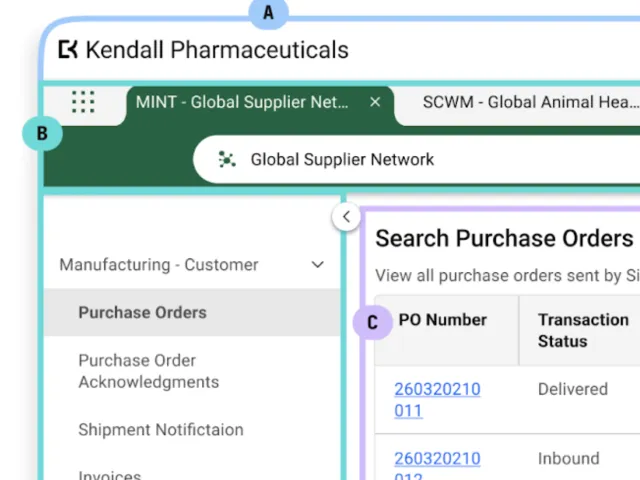
Enabling OPUS Solution Designers to understand Ensemble patterns, which includes user context, settings, and browser-style navigation for streamlined access.
[View More](/resources/tracelink-university/opus-ensemble-patterns)
[  ](/resources/tracelink-university/define-and-design-search-pages)
##### Define and Design Search Pages
Search pages enable users to view, search for, and create new object instances, typically serving as the landing page when navigating to a solution, except when only one instance exists (like the Profile page in Settings), in which case the user is directed to the View/Edit page.
[View More](/resources/tracelink-university/define-and-design-search-pages)
[  ](/resources/tracelink-university/define-and-design-workflows)
##### Define and Design Workflows
This guidance outlines essential practices for designing effective workflows that enhance efficiency and flexibility in business processes, focusing on primary objects to help OPUS Solution Designers create impactful solutions.
[View More](/resources/tracelink-university/define-and-design-workflows)