
Table of contents
The OPUS Ensemble solution provides a global user experience that seamlessly delivers personalized settings, navigation, and company-specific context, providing instant access to essential tools and notifications through an intuitive, browser-like interface.
 Navigation overview
 The OPUS Ensemble global user experience includes the following elements:
- Ensemble tabs
- TraceLink Account menu
- Help, Support, Community forum, and Notifications icons
- Main Menu icon
- Network composer
- Side menu
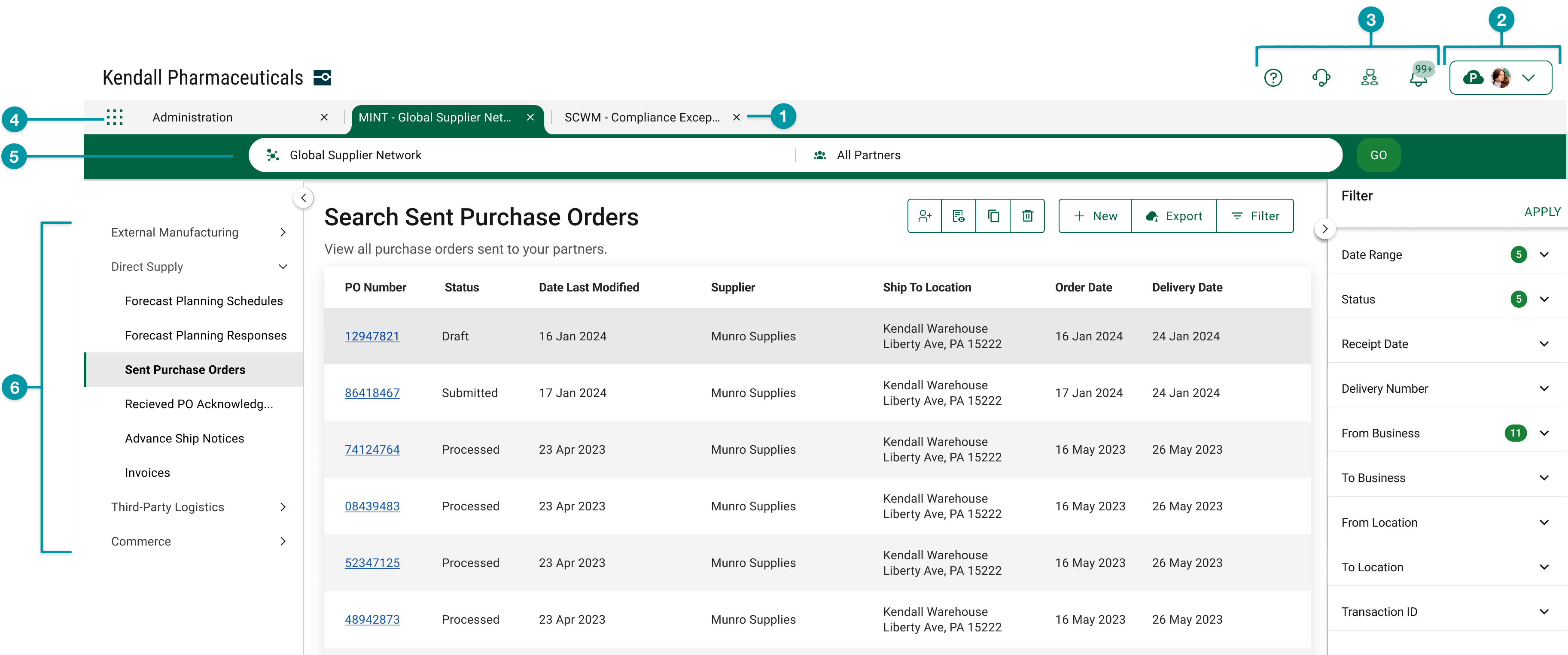
View multiple solutions in one browser window Users can navigate across multiple TraceLink solutions in a single browser window with an intuitive, familiar tab bar that gives access to key information from multiple sources without having to switch between multiple browser windows. For example, a user who is creating a purchase order acknowledgment in MINT can view their trade partner's master data in a separate tab and switch easily between the two. Any currently open tabs will not refresh when a new tab is opened, which ensures that information persists when switching from one solution to another. When users log in, OPUS Ensemble automatically re-opens any tabs that were open the last time the user logged out, providing consistency and efficiency across multiple sessions.
 If a user has unsaved information in an OPUS Ensemble tab, the unsaved information may be lost if the user switches to another OPUS Ensemble tab without saving first. In this case, the system displays a confirmation dialog to alert the user that switching tabs may cause data loss. The user can then cancel the action, return to the original tab, and save their changes.
View all import and export files The Import and Export Files interface provides a single, searchable view of all files imported and exported through the OPUS Platform.
The interface consolidates files from all your licensed OPUS applications into a single, searchable view. Use this interface to track file statuses (e.g. In progress), apply filters, and sort records to support efficient file management across regions.
-
Select the correct company from the TraceLink Account menu if you have access to multiple companies.
- From the TraceLink Account menu, select .
The Search Import/Export Files screen appears. - Select the button to search for a file.
- In the Filters push panel, fill in one or more of the following search parameters:
- Activity Name field – The name of the import or export file related activity.
- App Name drop-down – The name of the available application.
- State drop-down – The current status of the activity.
- Select All – Displays all available statuses.
- Created – The request has been created but has not started processing.
In Progress – The request is currently being processed.
Succeeded – The file import or export completed successfully and includes all data.
Partially Succeeded – The file import or export completed, but some data could not be included.
Failed – The file import or export did not complete due to an error.
- Activity Completion Time drop-down – The date and time by which the file import or export process was completed.
- Select .
The main content area displays the results. - From the results table, in the Activity Name column, select the desired link to view the activity details.
The activity details screen displays the following information:- Activity Name – The reference name of the file import or export related activity.
- Activity – The type of the activity (e.g.,file import or export) performed.
- App Name – The name of the application.
- Description – The message description about the file import or export activity.
- Request Time – The date and time of the import or export process was requested or initiated.
- Activity Completion Time – The date and time the file import or export process was completed.
- Import/Export File – The exported file available for download. Select the file name hyperlink or the Download
 icon to download the file.
A notification appears in the Notification panel after download completes.
Access settings, support, community forum, and notifications The new navigation system provides access to the user's account information, settings, and notifications at the top of every browser window, and also includes links to TraceLink support, the help center for the product displayed in the active tab, which gives users access to TraceLink documentation and support resources without scrolling or leaving their current product. The navigation also provides access to the Community forum for collaboration and knowledge sharing.
Access networks and solutions from a single menu Users access all of their networks, Partner networks, and enterprise solutions via a single main menu on the left side of the header. Enterprise and multienterprise solutions are not prefixed with the company name, which allows users to identify solutions more quickly and accurately. The company name still appears as a prefix on Partner networks.
Selecting or in the main menu opens the network composer, where users select the desired network and partner or location, if applicable. The network composer only appears when viewing a multienterprise solution, which ensures that users are only presented with navigation options that are appropriate for the current solution. Enterprise solutions (e.g. Serialized Product Intelligence), including solutions that previously appeared in the side menu (e.g. Administration), now appear in the main menu as individual line items. All networks, Partner networks, and enterprise solutions open in a new OPUS Ensemble tab.
The network composer no longer includes a Process drop-down, which allows longer network names to fully display in the network composer. Instead, all processes for the selected solution are consolidated in the side menu. The processes may be categorized in drop-downs within the side menu, which ensures that the space on the screen is properly used as the number of processes increases.