Table of contents
The OPUS Ensemble solution provides a global user experience that seamlessly delivers personalized settings, navigation, and company-specific context, providing instant access to essential tools and notifications through an intuitive, browser-like interface.
 Navigation overview
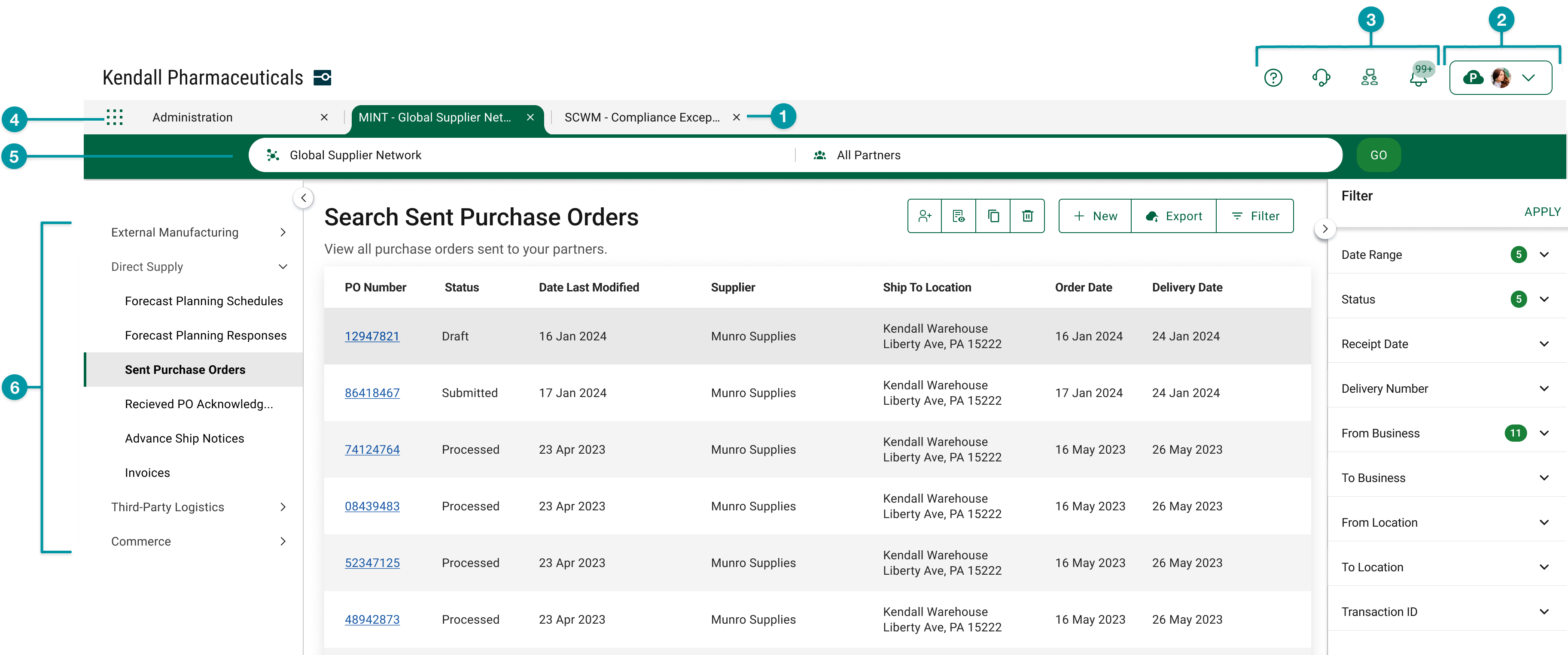
The OPUS Ensemble global user experience includes the following elements:
- Ensemble tabs
- TraceLink Account menu
- Help, Support, Community forum, and Notifications icons
- Main Menu icon
- Network composer
- Side menu
Navigate to networks, solutions, and resources
Access networks, solutions, and resources from a single location. Use the unified menu to switch between networks and solutions, view multiple solutions in one browser window, and quickly access settings, support, notifications, and community resources.
View multiple solutions in one browser window Users can navigate across multiple TraceLink solutions in a single browser window with an intuitive, familiar tab bar that gives access to key information from multiple sources without having to switch between multiple browser windows. For example, a user who is creating a purchase order acknowledgment in MINT can view their trade partner's master data in a separate tab and switch easily between the two. Any currently open tabs will not refresh when a new tab is opened, which ensures that information persists when switching from one solution to another. When users log in, OPUS Ensemble automatically re-opens any tabs that were open the last time the user logged out, providing consistency and efficiency across multiple sessions.
 If a user has unsaved information in an OPUS Ensemble tab, the unsaved information may be lost if the user switches to another OPUS Ensemble tab without saving first. In this case, the system displays a confirmation dialog to alert the user that switching tabs may cause data loss. The user can then cancel the action, return to the original tab, and save their changes.
Access networks and solutions from a single menu Users access all of their networks, Partner networks, and enterprise solutions via a single main menu on the left side of the header. Enterprise and multienterprise solutions are not prefixed with the company name, which allows users to identify solutions more quickly and accurately. The company name still appears as a prefix on Partner networks.
Selecting or in the main menu opens the network composer, where users select the desired network and partner or location, if applicable. The network composer only appears when viewing a multienterprise solution, which ensures that users are only presented with navigation options that are appropriate for the current solution. Enterprise solutions (e.g. Serialized Product Intelligence), including solutions that previously appeared in the side menu (e.g. Administration), now appear in the main menu as individual line items. All networks, Partner networks, and enterprise solutions open in a new OPUS Ensemble tab.
The network composer no longer includes a Process drop-down, which allows longer network names to fully display in the network composer. Instead, all processes for the selected solution are consolidated in the side menu. The processes may be categorized in drop-downs within the side menu, which ensures that the space on the screen is properly used as the number of processes increases.
Access settings, support, community forum, and notifications The new navigation system provides access to the user's account information, settings, and notifications at the top of every browser window, and also includes links to TraceLink support, the help center for the product displayed in the active tab, which gives users access to TraceLink documentation and support resources without scrolling or leaving their current product. The navigation also provides access to the Community forum for collaboration and knowledge sharing.