
Table of contents
General
 What's the difference between Serial Number Manager, Serial Number Exchange, and Serialized Operations Manager?
All three of these apps support pharmaceutical manufacturing and work together closely. However, they each play a distinct role in the manufacturing process:
- Serial Number Manager is the first step, where Pharmaceutical Manufacturers, CMOs, and Repackagers create templates that govern how serial numbers are generated (e.g. the characters and format used, the method for generating serial numbers) and then generate serial numbers or import serial numbers from external serialization managers.
- Serial Number Exchange comes next, where manufacturing and packaging locations can request serial numbers and perform all other activities necessary on their manufacturing or packaging lines (e.g. commission, aggregation).
- Finally, Serialized Operations Manager allows all warehouse locations for any business segment (e.g. Pharmaceutical Manufacturers, CMOs, 3PLs, Wholesale Distributors, large retail Pharmacies) to perform all the activities necessary in a warehouse that ships or receives product (e.g. status updates, aggregation, shipments, status queries).
What are solutions? TraceLink apps are extended through solutions, which pull together assets that define how the app looks and functions when users interact with it (i.e. the app's data model, pages, workflows, roles, and policies). Solutions available in the Marketplace Catalog can be saved as Company Solutions and configured to meet a company's specific use cases and business needs.
What solutions are available for Serialized Operations Manager? The Serialized Operations Manager app has only one solution, which is also called Serialized Operations Manager.
Roles
What roles can be assigned to Serialized Operations Manager users? The following Serialized Operation Manager roles can be assigned to users:
- Receipt Member - Standard Access – Allows users to receive products, and search for and view receiving operations.
-
Receipt Member - Expanded Access – Allows users to access to receive products, search for and view the receiving operation, and view reports and dashboards.
- Serialized Item Member - Standard Access – Allows users to search for and view serial number information.
Serialized Item Member - Expanded Access – Allows users to search for, view, and export the serial number information.
- SOM Member - Classic Access – Allows users to access the classic Track & Trace Services (TTS) Serialized Operations Manager screens through OPUS.
- SOM Support Access Viewer – Allows users to temporary, time-bound access to the app for investigating and resolving customer-reported issues to view receiving operations, reports, dashboards, and classic TTS screens.
For more information about how to assign roles to users, see the Administer Help Center.
How do roles provide users with access? Roles group a set of permissions for specific actions (either in the UI or via API), side menu items, and data within an app. The solution applied to the app or its network determines which roles are available. Administrators assign users to roles when they assign users to an app, its network, or its Links.
Owners assign specific roles to Links, which allow their Partners to assign those roles to the Partner users with access to the Link.
How do I add or edit roles? Companies must own OPUS Solution Environment (OSE) to add or edit roles. If your company owns OSE and you also have the Solution Designer role assigned, you can add new roles to a Company Solution or edit existing roles by navigating to OSE and selecting Roles in the side menu. See the OPUS Solution Environment Help Center for more information. If your company does not own OSE, then contact TraceLink Support for more information.
Serial numbers
What is the full serial number life cycle? A serial number moves through the following life cycle as it passes down the supply chain.
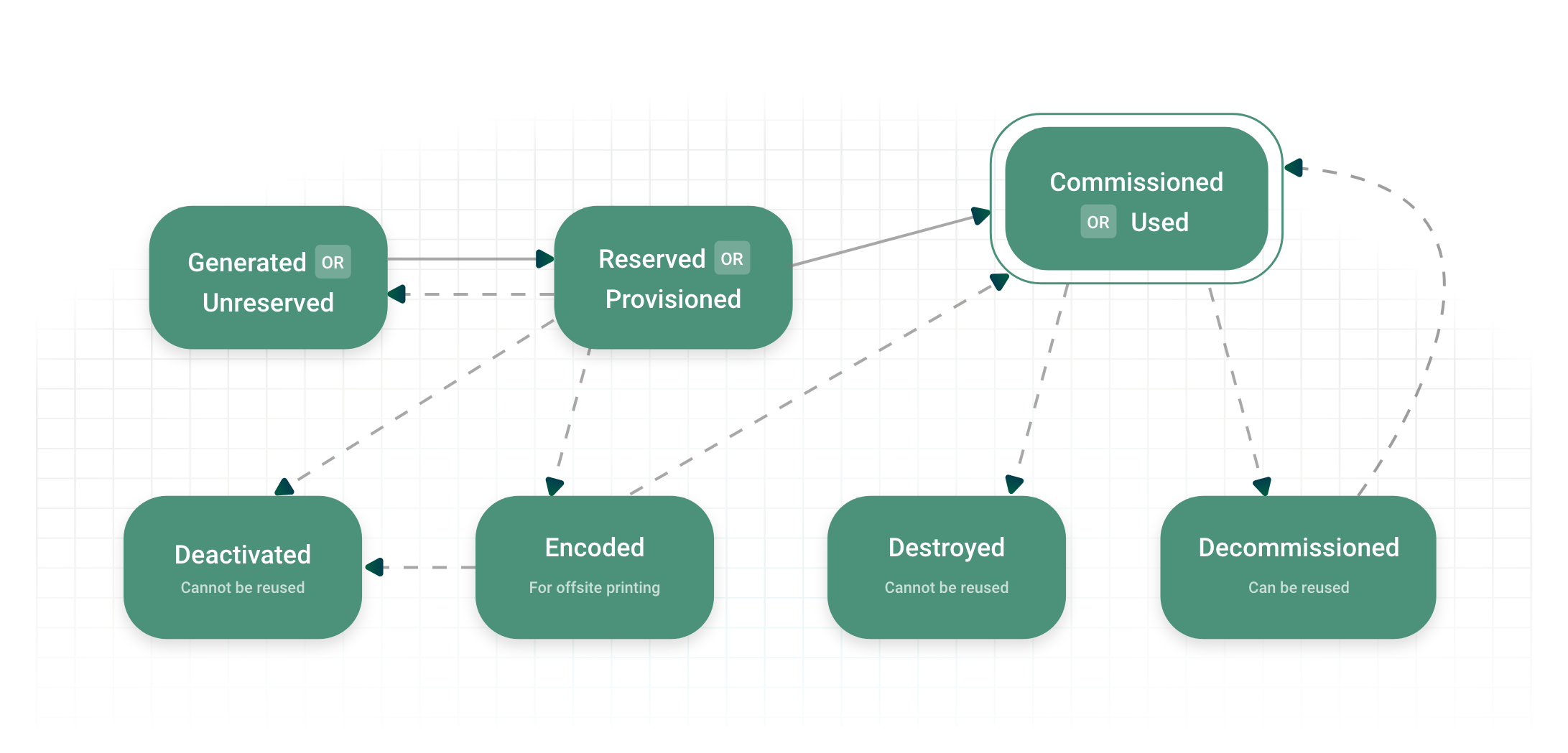
- Generated or Unreserved – The serial number is generated and available in the serial number template pool, but has not been requested by a manufacturing or packaging location yet.
- Reserved or Provisioned – A packaging location has requested and received the serial number, but the serial number has not been associated to a specific product and lot yet (i.e. commissioned).
- Commissioned or Used – The serial number is associated with either an SSCC container code or a packaging code, lot number, and expiration date.
- Encoded – The serial number is sent for pre-printing on the product labels after provisioning.
- Destroyed – The serial number is terminated. Destroyed serial numbers cannot be re-commissioned.
- Decommissioned – The serial number is no longer associated with either an SSCC container code or a packaging code, lot number, and expiration date.
- Deactivated – The serial number is deactivated. Only serial numbers in reserved or encoded states can be deactivated. Deactivated serial numbers cannot be re-commissioned.
At any point in its life, a serial number might also be Registered, which means that the serial number is registered with the company's serial number repository, either during repackaging or when the company received a shipment without corresponding EPCIS serial number data.
 The same status transition rules apply in OPUS SOM and Track & Trace Services (TTS) SOM.
What transitions are available for serial number statuses? The current serial number status determines the new serial number statuses that are available. The table below shows the current status on the left and the new status along the top. Yes indicates that the transition is allowed, and No indicates that the transition is not allowed.
Serial number statuses indicate which stage the serial number is at within its life cycle.
| Reserved | Unreserved | Encoded | Commissioned | Destroyed | Decommissioned | Deactivated | Registered | |
|---|---|---|---|---|---|---|---|---|
| Reserved | - | Yes | Yes | Yes | No | No | Yes | No |
| Unreserved | Yes | - | No | No | No | No | No | No |
| Encoded | No | No | - | Yes | No | No | Yes | No |
| Commissioned | No | No | No | - | Yes | Yes | No | No |
| Destroyed | No | No | No | No | - | No | No | No |
| Decommissioned | No | No | No | Yes | No | - | No | No |
| Deactivated | No | No | No | No | No | No | - | No |
| Registered | No | No | No | No | Yes | Yes | No | - |
The same status transition rules apply in OPUS SOM and Track & Trace Services (TTS) SOM.
What transitions are available for item statuses? The current item status determines the new item statuses that are available. The table below shows the current status on the left and the new status along the top. Yes indicates that the transition is allowed, and No indicates that the transition is not allowed.
Item statuses indicate which the part of the packaging or warehouse management process the physical item associated with the serial number is currently in.
Serialized Operations Manager enforces item status transitions only for commissioned serial numbers.
| Available | Picked | Shipped | Pending Receipt | Received | Blocked | Under Investigation | |
|---|---|---|---|---|---|---|---|
| Available | – | Yes | Yes | No | No | Yes | Yes |
| Picked | Yes | – | Yes | No | No | No | No |
| Shipped | Yes | No | – | Yes | Yes | No | No |
| Pending Receipt | No | No | Yes | – | Yes | No | No |
| Received | Yes | No | Yes | No | – | No | No |
| Blocked | Yes | No | No | No | No | – | No |
| Under Investigation | Yes | No | No | No | No | No | – |
The same status transition rules apply in OPUS SOM and Track & Trace Services (TTS) SOM.
What format is required to type or scan serial numbers? When scanning, entering, or importing a file to input serial numbers, each serial number must follow the format for its barcode type:
- SGTIN – The AI(01)(21) serial number in human-readable format without parentheses (e.g. 010088202401033921725368249416):
- The (01) Application Identifier.
- The GTIN-14 or NTIN packaging code value (e.g. 00882024010339).
- The (21) Application Identifier.
- The serial number's unique value (e.g. 725368249416).
- SSCC – The AI(00) serial number in human-readable format without parentheses (e.g. 00008820200000050254):
- The (00) Application Identifier.
- The SSCC's unique value (e.g. 008820200000050254).
- EDMC – The full 20-digit serial number (e.g. 81102302020117515452).
The same status transition rules apply in OPUS SOM and Track & Trace Services (TTS) SOM.
OPUS
What are the password requirements for TraceLink SSO? Passwords must be a minimum of 8 characters, must not be your email, and must include at least one:
- Numerical digit
- Lowercase letter
- Uppercase letter
- Special character
If your company was enabled on the OPUS from Track & Trace Services, the following password settings from Track & Trace Services apply:
- Number of previous passwords that cannot be reused.
- Number of login attempts allowed before the account is locked.
- Number of days until the password expires.
If your company was not originally enabled on Track & Trace Services, the following default settings apply to TraceLink SSO:
- The previous 6 passwords cannot be reused.
- 5 login attempts are allowed before the account is locked.
- Passwords expire in 30 days.
Which browsers does the OPUS support? The OPUS supports the following web browsers:
- Google Chrome (recommended): Versions 57, 68, 74, or above
- Microsoft Edge: Version 113 or above
- Mozilla Firefox: Versions 60, 63, 67, or above
- Apple Safari: Versions 12.1.2, 13.0, or above
The OPUS supports the following mobile browsers:
- Google Chrome Mobile: Version 80.0 or above
- Android Web View: Version 80.0 or above
- iOS Safari: Version 13.1 or above
